
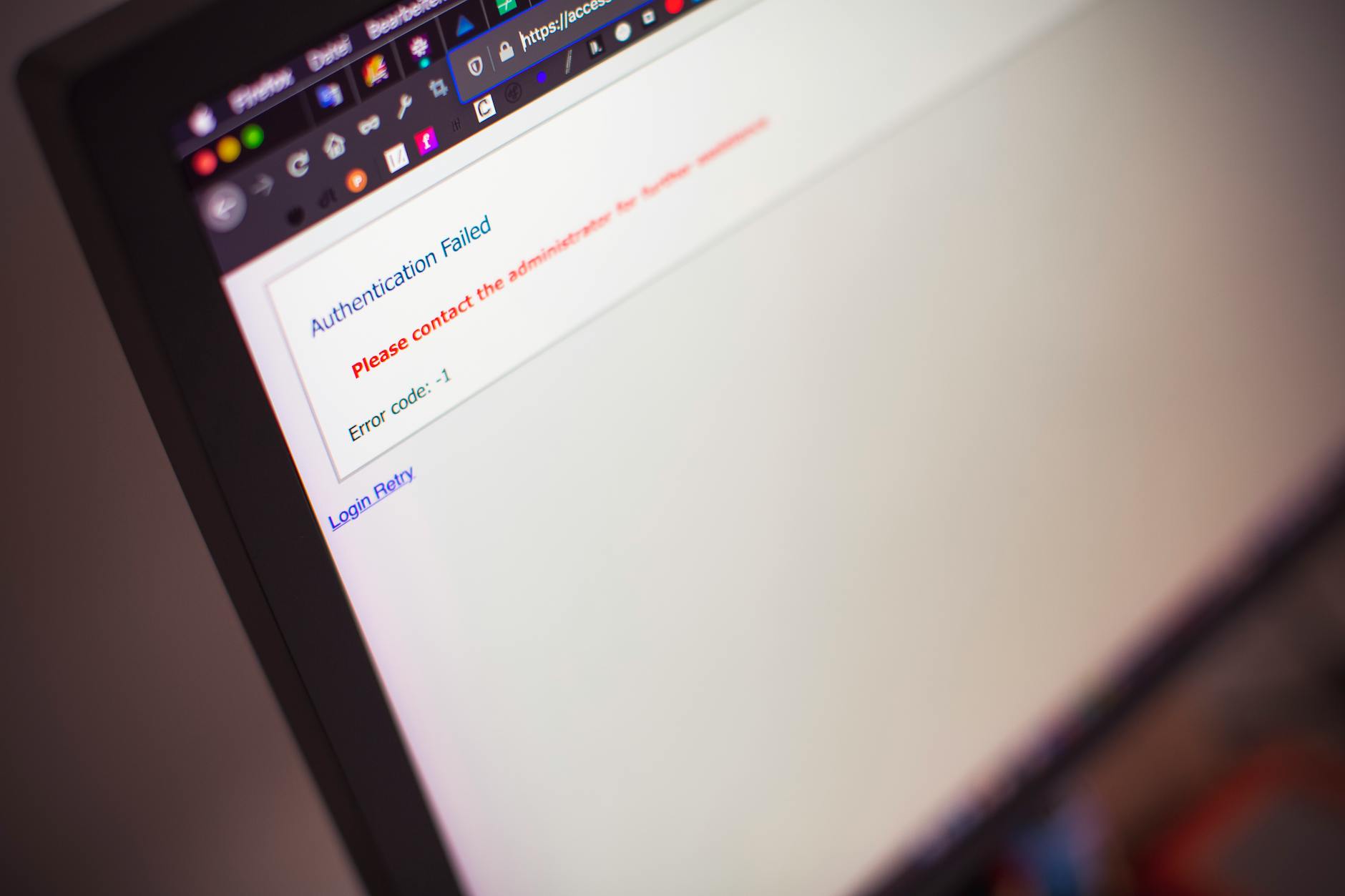
When a WordPress update broke my site, the fastest way to fix it is to revert to a recent backup or temporarily deactivate your plugins via FTP to identify the conflict. Most site crashes after an update are caused by incompatibility between the new WordPress core code and an older plugin or theme that hasn't been updated to match, or by a PHP version mismatch.
Why did a WordPress update break my site?
WordPress updates are necessary for security, but they often change the underlying code. If your theme or plugins contain outdated functions, the site will throw an error. The most common error is the 'White Screen of Death,' where your site displays nothing at all. Another common issue is the '500 Internal Server Error,' which usually points to a conflict within the .htaccess file or a memory limit issue on your hosting plan.
Sometimes, the update process itself is interrupted. If your internet connection drops or your server times out while the update is running, you might end up with a 'briefly unavailable for scheduled maintenance' error. This happens because WordPress leaves a file called .maintenance in your root directory. Once the update completes, the system should delete this file automatically. If it stays behind, your site remains stuck in maintenance mode indefinitely.
How can I fix a site that won't load?
If you cannot access your dashboard, you must use an FTP client like FileZilla or your hosting provider's File Manager. Follow these steps to diagnose the problem:
- Check for the maintenance file: Log into your site files and look for a file named .maintenance in the main folder. If you see it, delete it. Your site should load immediately.
- Deactivate plugins: Navigate to the /wp-content/ folder. Rename the 'plugins' folder to something like 'plugins_old'. This forces WordPress to deactivate all plugins. If your site loads after this, you know a plugin was the culprit.
- Switch to a default theme: Sometimes the theme is the issue. If you have access to the database or the file manager, you can rename your active theme folder to force WordPress to revert to a default theme like Twenty Twenty-Four.
If you perform these steps and the site remains down, the issue might be deeper, such as a database corruption or a server-side PHP version incompatibility. For complex issues, you can reach out to Site Rescue Experts to handle the technical heavy lifting for you.
Should I restore from a backup?
Restoring from a backup is often the most reliable way to get back online. If your host provides automatic daily backups, use their dashboard to roll back to the version from 24 hours ago. This usually takes about 10 to 15 minutes to complete, depending on the size of your database. Before you restore, make sure to export your current database if you have made any recent content changes that you do not want to lose.
If you do not have a recent backup, you are in a more difficult position. You will need to manually debug the code, which requires knowledge of PHP and server logs. If you are not comfortable editing files, do not attempt to guess, as one wrong character can delete your entire site database.
How do I prevent this from happening again?
The best defense against update crashes is a staging site. A staging site is a mirror of your live website where you can test updates before pushing them to the public. If you have a staging environment, you can run the WordPress update there first. If the staging site breaks, you know exactly which plugin or theme caused the issue without your customers ever seeing a broken page.
Another preventative measure is keeping your PHP version current. Many older sites run on PHP 7.4 or lower, which is no longer supported. If you update WordPress but your server is running an ancient version of PHP, the site will likely crash. Check your hosting panel to ensure you are running at least PHP 8.1 or 8.2.
What are the costs of professional site repair?
Hiring a developer to fix a broken site typically costs between $150 and $400 for an emergency repair. This price range covers the time required to investigate server logs, identify the conflicting code, and patch the incompatibility. If you have a large e-commerce store with hundreds of products, the cost might be higher because the database recovery process is more intensive. At Site Rescue Experts, we focus on getting your business back to normal with clear, transparent pricing and no guesswork.
How long does it take to fix a broken site?
A standard plugin conflict can often be resolved in under an hour. If the issue is a database corruption or a core file error, it may take 2 to 4 hours to safely repair. We prioritize these requests because we know that every hour your site is down, you are losing potential revenue and traffic. If you are currently staring at a broken screen and need immediate assistance, stop trying to fix it yourself if you feel overwhelmed. Further attempts at troubleshooting without a backup can sometimes make the problem permanent. Let a professional take a look at the server logs to find the root cause of the crash.